Authentication & Multi-Tenancy
CodeXray protects every page and every API call behind authentication, and organises everything you see into the tenant and project you're currently working in. This page covers how to sign in, how multi-tenancy is structured, and how to manage your own credentials.
- Authentication answers "who are you?" — handled by the login flow on this page.
- Authorisation answers "what can you do?" — handled by Role-Based Access Control.
Signing In
CodeXray ships a login screen as the entry point for the UI. Every browser session starts here.
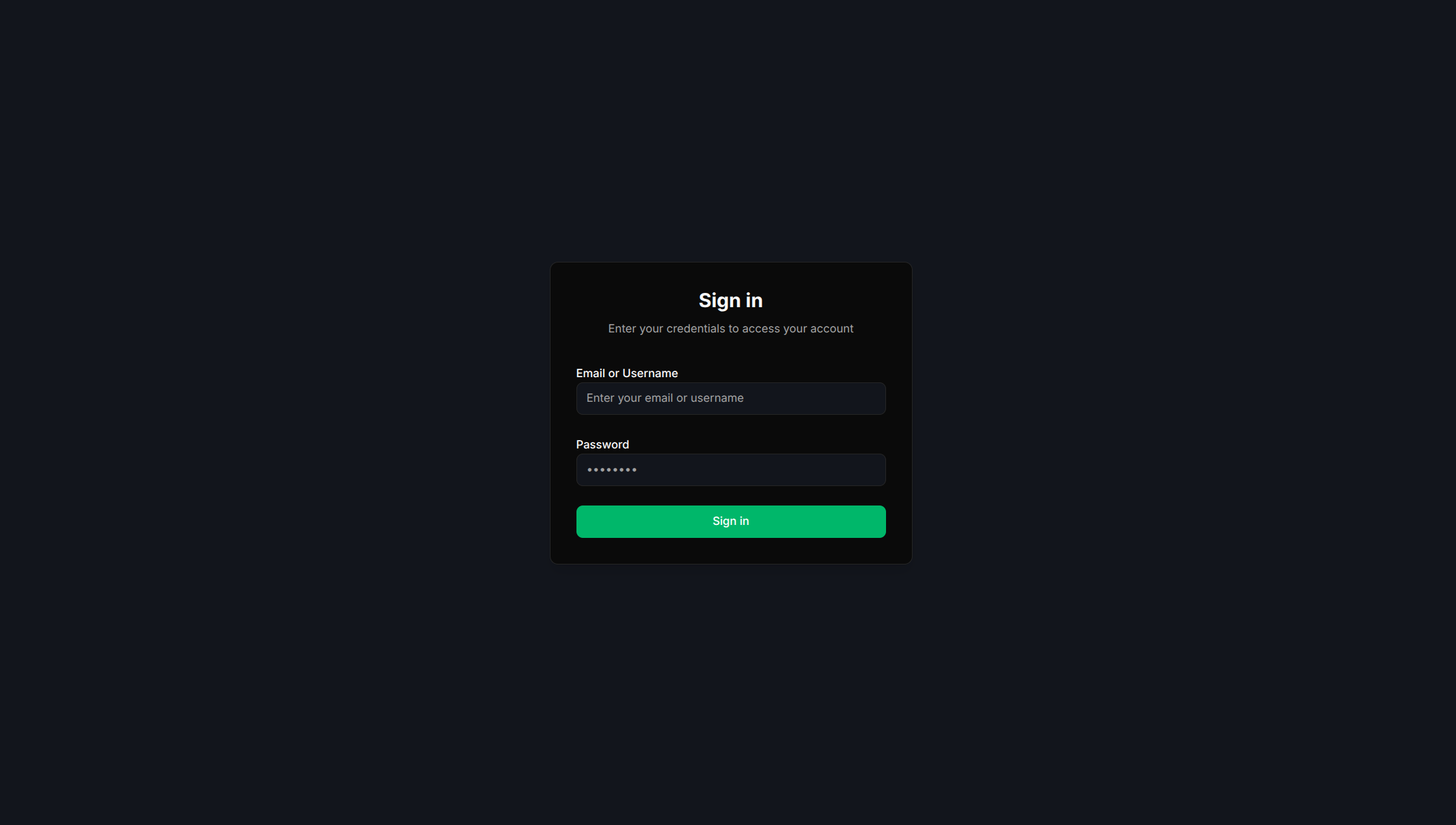
The login form needs two things:
- Email — your registered account email
- Password — your account password
Successful login issues a session token (JWT) that's persisted in the browser. The token carries your user identity, your tenant, and your active project — so every request you make from the UI is automatically scoped to the right context.
First-time login
When CodeXray is freshly installed, the platform bootstraps a default tenant and a default admin user (configured by the operator during installation). Sign in with the admin credentials provided to you during onboarding, change the password immediately, and then create users for your team via RBAC.
Sign-out
The sign-out action in the user menu invalidates your session token on the server. You'll need to sign in again to continue.
Multi-Tenancy
CodeXray is multi-tenant from the ground up. The same CodeXray deployment can host many independent tenants — each with its own users, projects, telemetry, alerts, and retention — without data ever crossing tenant boundaries.
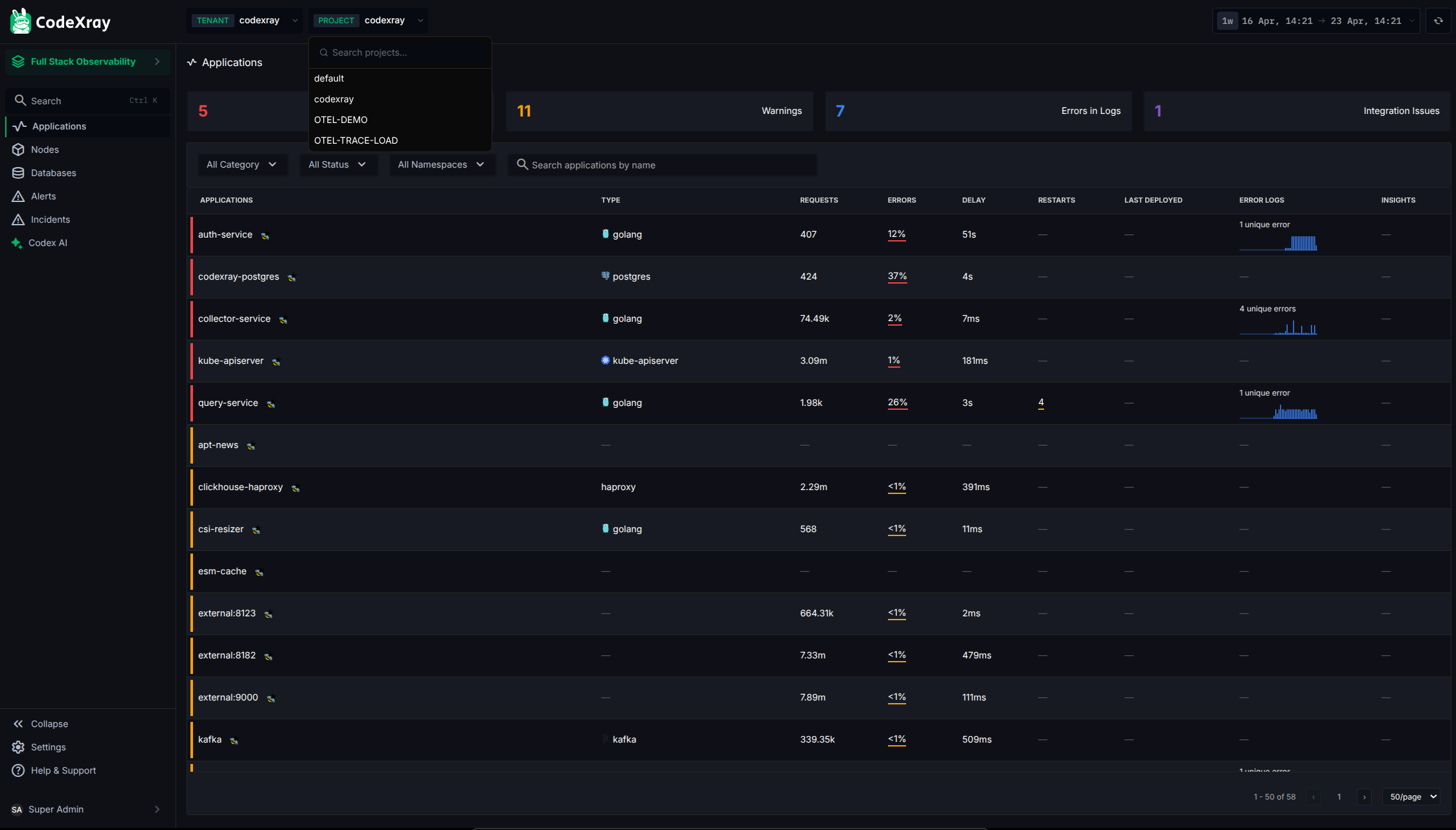
The data model:
| Concept | Meaning |
|---|---|
| Tenant | The top-level isolation boundary — typically one company, one business unit, or one MSP customer |
| Project | A workspace within a tenant — typically one product, one environment, or one team |
| User | An identity that belongs to one or more tenants; within each tenant they have a role |
| API key | A long-lived credential scoped to a tenant + project, used by agents and OTLP exporters to ship telemetry |
The tenant and project selectors live in the top navbar. Switching either one immediately re-scopes everything below — Applications, Topology, Nodes, Databases, Alerts, Incidents, Settings. There's no "all-tenants view"; you're always working in exactly one tenant + one project at a time.
Why this design
- Hard data isolation — telemetry is partitioned by tenant ID at ingestion. There's no view that mixes data across tenants.
- Independent retention and alerting — each tenant configures its own retention, alert channels, and projects.
- MSP-friendly — a single CodeXray instance can serve many customer tenants with strict separation.
- Platform-team-friendly — internal platform teams can host multiple product groups as separate tenants.
What separates a tenant from a project?
- Tenants isolate users and data. A user in Tenant A cannot see anything in Tenant B (unless they're invited there separately).
- Projects isolate workspaces within a tenant. Different teams or environments under the same business unit use different projects, but they share the same tenant boundary and the same user list.
A useful rule of thumb:
- Different companies? → different tenants
- Different products / environments inside one company? → different projects in the same tenant
Project API keys
Telemetry from your services to CodeXray is authenticated using a project API key — a JWT containing the tenant_id, project_id, and an expiry. Agents send it as the x-api-key HTTP header on every OTLP call. Issue and rotate keys from Project Settings → API Keys in the UI.
Anything that ingests telemetry needs an API key:
- Node Agent, Cluster Agent, Database Agent, Windows Agent, .NET Agent
- Any service using OpenTelemetry SDKs (Go / Java / Python)
The key carries the tenant and project, so telemetry routes itself automatically.
Changing Your Credentials
You can change your password at any time from the user-profile area.

The flow asks for:
- Your current password (to confirm it's really you)
- A new password (entered twice for verification)
CodeXray hashes passwords with bcrypt and never stores them in plaintext. The check against your old password runs server-side.
Reach out to your CodeXray admin to reset it. In standalone deployments the admin can reset passwords from the user-management screen (see RBAC).
Single Sign-On (SSO)
CodeXray supports Single Sign-On with Microsoft Entra ID (Azure AD) — letting your team sign in with their existing Microsoft work account instead of a CodeXray password. Each organisation connects its own directory and manages it self-service: your primary admin configures it in Settings → Single Sign-On, with no CodeXray staff involvement.
When SSO is enabled, the login screen is email-first — enter a work email on an enabled domain and a "Sign in with your organisation" button appears. Roles can be mapped from your directory's app roles, and access follows your directory: disable someone in Entra and they can no longer sign in.
For the full guides, see:
- SSO Overview — concepts and how the flow works
- Set Up Azure Entra ID SSO — the step-by-step setup
- Signing In & Managing SSO Users — the end-user experience and user management
- SSO Troubleshooting — fixes for the common errors
Session and Token Behaviour
| Token type | Used by | Lifetime |
|---|---|---|
| UI session JWT | Browser sessions after login | Short-lived; renewed silently while you're active |
| Project API key | Agents and OTLP exporters | Long-lived (typically years); rotatable any time from the UI |
| Refresh token | Browser sessions | Lets the UI extend the session without re-prompting on every action |
All tokens are signed JWTs. The platform validates them on every request — there's no "remember me" that bypasses validation.
Next Steps
- Role-Based Access Control — manage users, roles, and per-project permissions
- Application Categories — organise services into categories for dashboards and filtering
- Architecture — where the Auth Service sits in the platform