Signing In & Managing SSO Users
Once SSO is set up and enabled, this is how your team signs in and how their accounts and roles are managed.
Signing in with SSO
Sign-in is email-first. On the login screen, a user enters their email address before anything else.
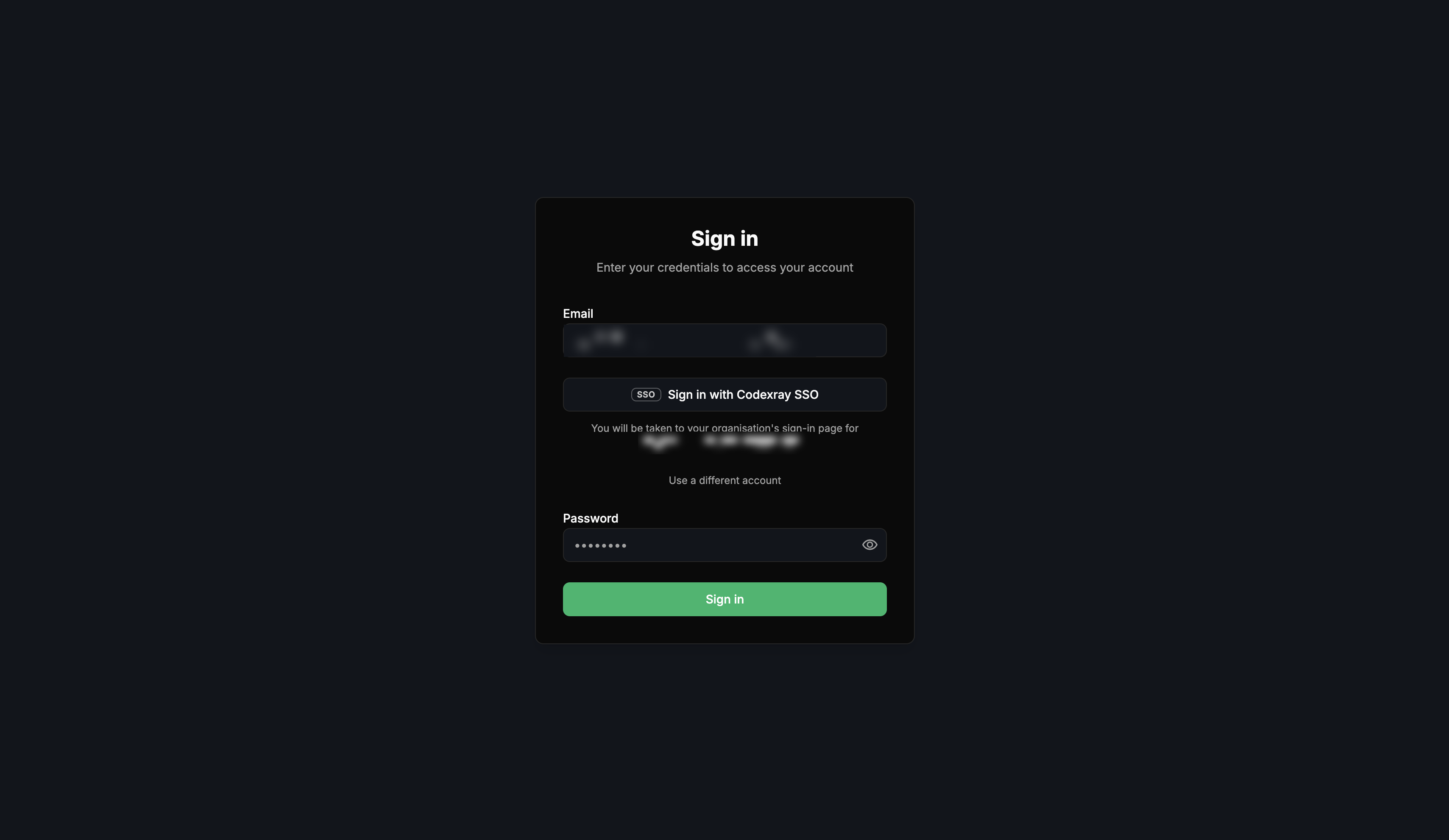
- If the email's domain is enabled for SSO, CodeXray shows a "Sign in with your display name" button, and a line confirming where they're headed: "You will be taken to your organisation's sign-in page for
acme.com." - Clicking it sends them to your organisation's Microsoft sign-in page. After they authenticate, they land back in CodeXray, signed in.
- Use a different account — if someone is signed in to the wrong Microsoft account, this link forces the account picker.
When SSO is required
If your provider has Require single sign-on turned on, the login screen tells users "Your organisation signs in with single sign-on" and hides the password field entirely — everyone on your domains must use the SSO button.
A Sign in with a password instead link stays available for break-glass accounts — the one or two named addresses you exempted so a broken directory config can't lock your whole team out. They click it, the password field appears, and they sign in with their CodeXray password as usual. Every other user must use SSO.
With Create accounts on first sign-in on (the default), a new user's CodeXray account is created automatically the first time they sign in — no invite needed. With it off, unknown users are turned away and an admin must add them first.
How roles are decided
An SSO user's role starts from your directory. On the first sign-in, CodeXray reads the user's Entra app roles, applies the one that matches your role mappings, and falls back to the Default role if none match:
After that, CodeXray remembers what your directory last said and only changes the CodeXray role when that answer changes — it does not overwrite the role on every sign-in. That's what lets an in-CodeXray role edit stick (see Editing an SSO user's role).
| Last sign-in said | This sign-in says | What happens to the role |
|---|---|---|
| A mapped role (e.g. Editor) | The same mapped role | Nothing changes — any role you set in CodeXray stays. |
| A mapped role | A different mapped role | The new directory role is applied, replacing any CodeXray edit. |
| Nothing (Default) | A mapped role | The mapped role is applied — your directory now has an opinion. |
| A mapped role | Nothing (app role removed in Entra) | Treated as a revocation — the user drops to the Default role. |
| Nothing | Nothing | Nothing changes — the Default was a one-time starting point. |
When a directory change does apply, it updates the role everywhere it's stored — organisation-wide and across every project. Which projects the person belongs to is left alone.
The Default role is what everyone not matched by a mapping receives. Viewer is the safe choice — least privilege, and people can always ask for more. Avoid making Admin the default: any directory user who can reach CodeXray would land as an Admin.
If someone is assigned several CodeXray app roles in Entra, CodeXray uses the first one that matches a mapping — it doesn't pick the most privileged. Assign each person exactly one CodeXray app role so the outcome is predictable. (If a sign-in carries no app roles at all, CodeXray can instead match on the user's Entra group IDs — add a mapping whose key is the group's object ID.)
Identifying and managing SSO users
In Settings → Users, every person carries a badge showing how they sign in:
| Badge | Meaning |
|---|---|
| SSO | The account signs in through your identity provider. It has no CodeXray password. |
| Local | An ordinary CodeXray account with a password. It may also be linked to Entra — then it can sign in either way and follows the same directory-role rules. |
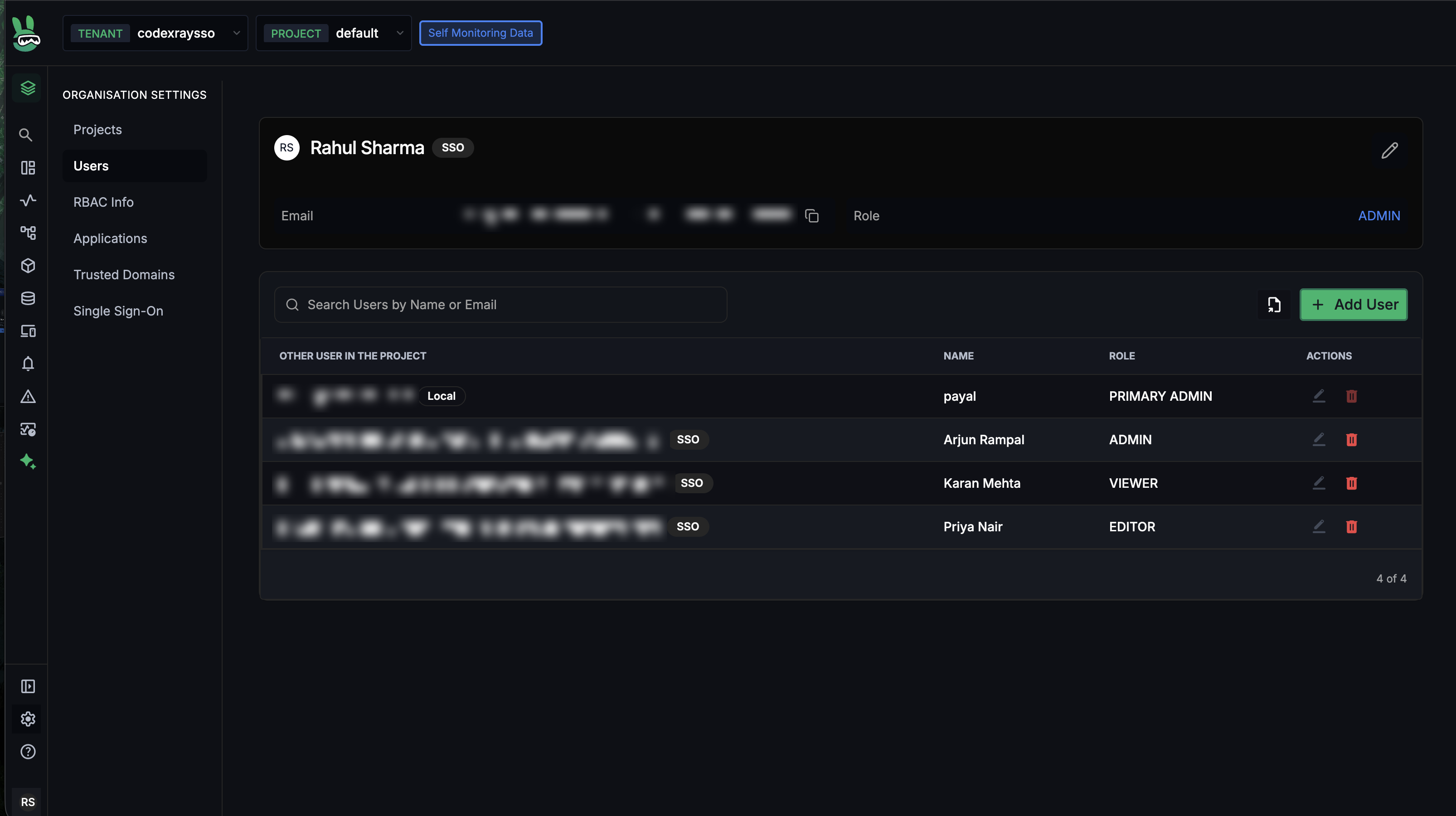
Because an SSO user's role comes from your directory, a couple of things differ from local users:
- Roles come from Entra. You can edit an SSO user's role in CodeXray, and it holds until your directory says something different — the tooltip notes "Edit role. A role change in your identity provider will override it." To change a role for good, change their app role in Entra.
- New users are added by signing in, not invited. SSO users appear automatically on first sign-in; the Add User button here creates local accounts.
When someone who already has a local CodeXray account signs in via SSO for the first time, CodeXray links the two (no duplicate) and sets their role from your directory right then — the mapped role, or the Default if nothing matches. So a local Admin with no matching app role drops to the Default role on that first SSO sign-in. Assign everyone their app role in Entra before you roll SSO out.
Editing an SSO user's role
Editing an SSO user's role in CodeXray is allowed, and the edit holds across sign-ins for as long as your directory keeps saying the same thing.
Example. Meera's Entra app role is codexray.editor, so CodeXray shows Editor. You change her to Admin in CodeXray. She signs in again — Entra still says Editor (unchanged), so she stays Admin. Later, IT changes her Entra role to codexray.viewer — now the directory's answer has changed, so at her next sign-in she becomes Viewer and the CodeXray edit is gone. (Had IT removed her app role entirely, she'd drop to the Default role.)
Use a CodeXray edit for a deliberate exception; for a permanent change, change the app role in Entra.
Managing who can sign in is done from the same page. As the organisation's primary admin, Settings → Users gives you three tabs — Active, Deactivated, and Deleted — and row actions to deactivate, reactivate, and remove people.
Deactivating and reactivating a user
Deactivate blocks someone from signing in without losing anything — their roles and access are kept, ready to restore. On their row, click the block icon ("Deactivate — blocks sign-in, keeps their roles").
- The dialog (Deactivate email) explains: "They will not be able to sign in… Nothing is deleted — their roles are kept, and reactivating restores exactly the access they had."
- A local user can be deactivated from the whole organisation (default) or this project only.
- An SSO user can only be deactivated organisation-wide — a notice explains "This account signs in through your identity provider, so its access is organisation-wide."
- Confirm with Deactivate (User deactivated).
Deactivated people move to the Deactivated tab, showing who deactivated them and when. Click Reactivate ("Restores sign-in and the access they had, in every project") to bring them back exactly as before — no confirmation needed.
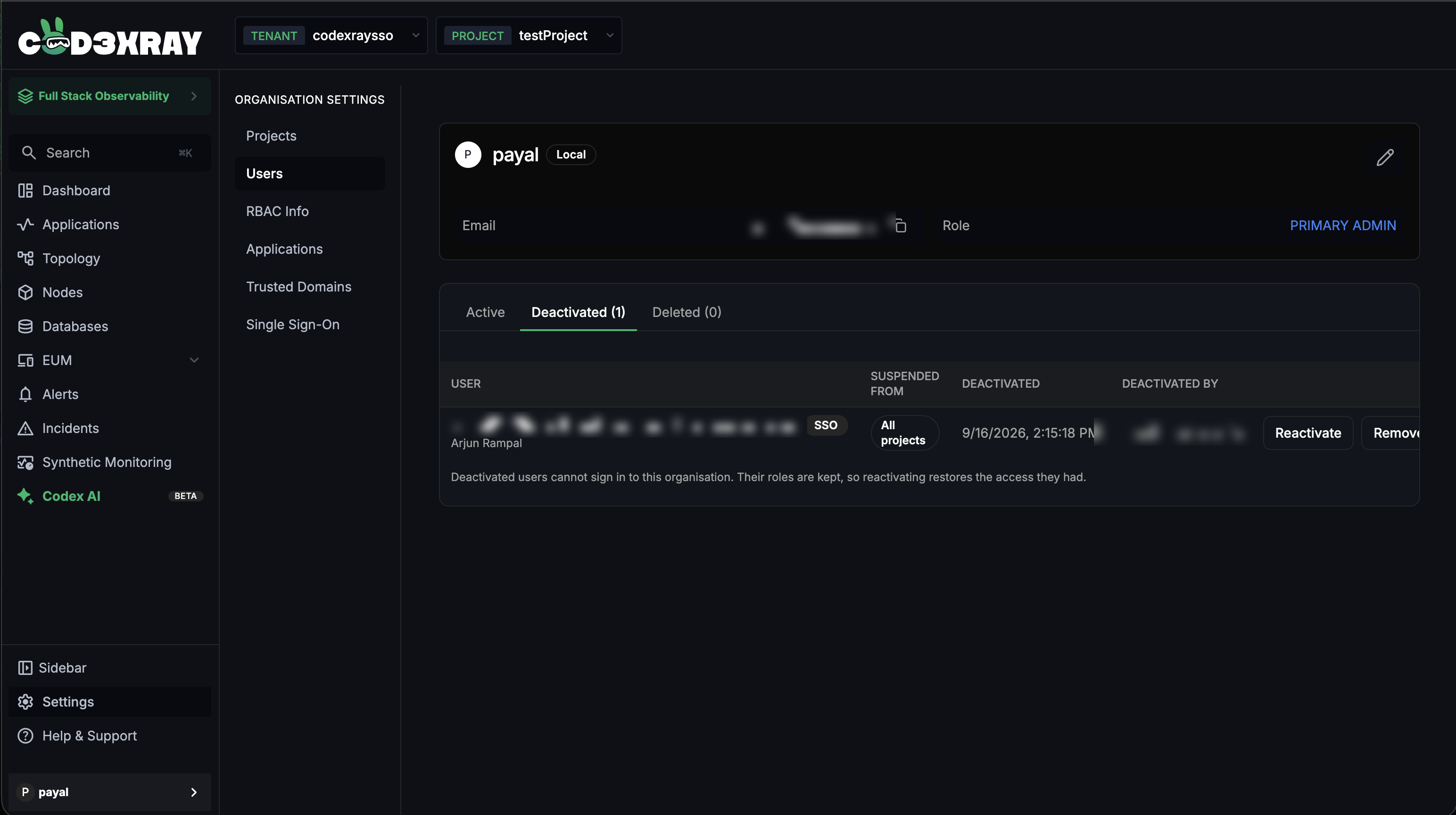
A deactivated SSO user stays blocked even if they sign in through Entra again — signing back in doesn't lift it. They see "Your account has been deactivated. Contact your organisation's administrator to restore access." Only an admin Reactivate restores them.
Removing (deleting) a user
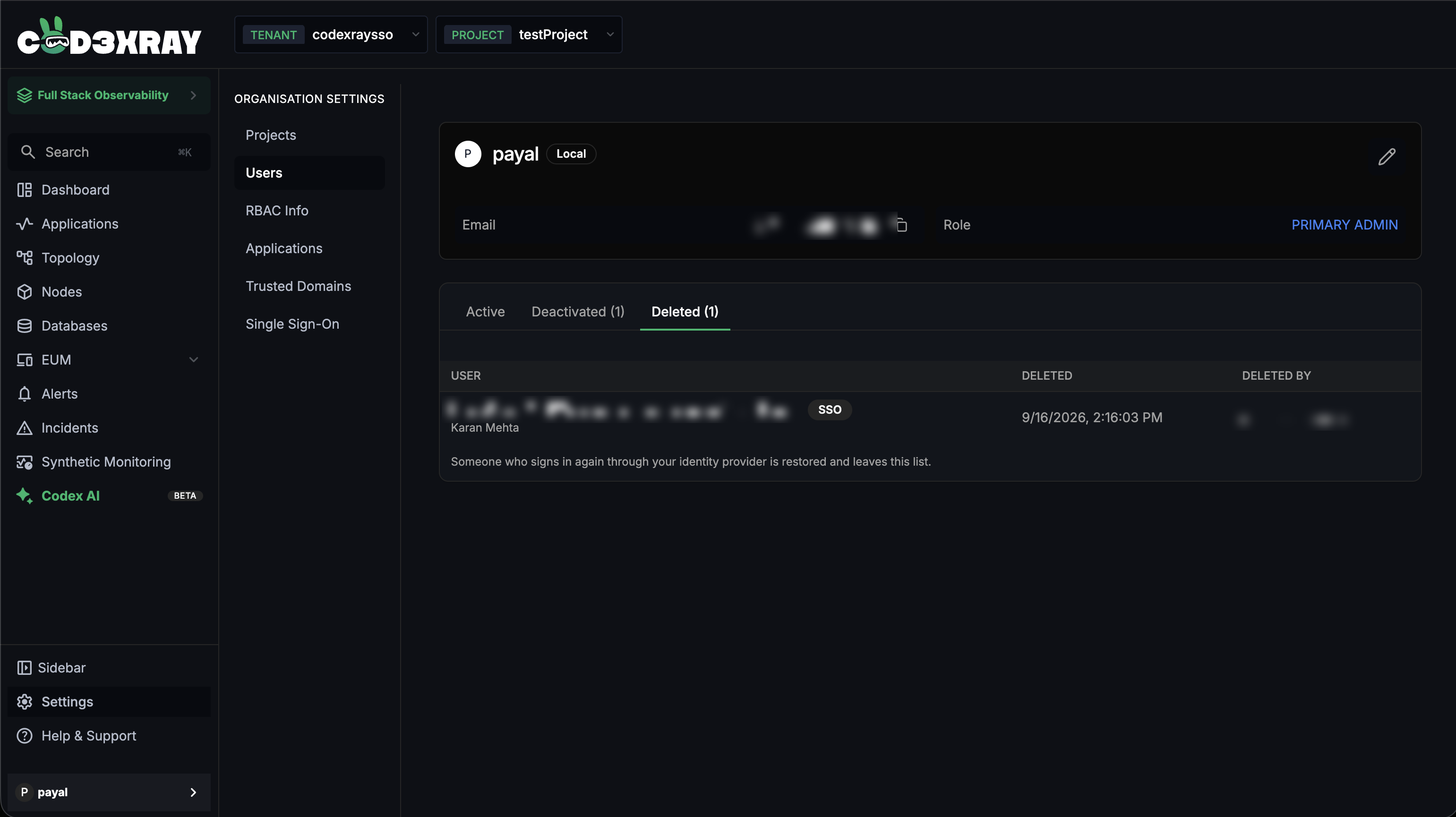
Remove takes someone out for good. It's a soft delete — the record is kept for audit, but the account is hidden and can't sign in. Use the delete icon on their row, or Remove on the Deactivated tab; removed people move to the Deleted tab.
- For an SSO user the dialog is Remove User from Organisation and warns: "…their access covers every project in this organisation. Removing them takes away all of it… They will reappear if they sign in again through the identity provider."
- For a local user it's scoped to the project (Remove User from Project).
Because access follows your directory, a removed SSO user is restored automatically the next time your directory signs them in — the same account, keeping its ID, API keys, and history. But their access is rebuilt from your directory's current role: any role you'd set in CodeXray and any per-project grants they had before removal are not brought back. This restore happens even if "Create accounts on first sign-in" is off. To keep someone out for good: deactivate them in CodeXray (which does survive re-login), or disable/remove them in Entra. (Removed local users don't come back on their own.)
- Temporarily block, keep everything → Deactivate in CodeXray (undo with Reactivate).
- Take them out of a project / the organisation → Remove in CodeXray.
- They've left for good → disable them in Entra — it covers every tool, and CodeXray follows. For an SSO user this (or a CodeXray deactivate) is what actually keeps them out, since a plain removal is undone at their next directory sign-in.
Only the organisation's primary admin can deactivate, reactivate, or remove people across the organisation; a project admin can remove a user from a single project. The primary admin can't be deactivated or removed — transfer the role first.
Your own profile
An SSO account has no CodeXray password, so Change Password doesn't apply — there's nothing to change. You can still edit your username.
Sessions and signing out
An SSO session behaves like any other CodeXray session once you're in.
- Sign out ends your CodeXray session. It does not sign you out of Microsoft — so the next SSO sign-in in that browser shows Microsoft's account picker, which stops the next person on a shared machine landing in your account. Use a different account on the login screen forces the picker at any time.
- Staying signed in. After a period of inactivity a session ends and you sign in again — usually one click if you're still signed in to Microsoft. Sessions also have a maximum length, after which CodeXray sends you back through Microsoft. When a session simply needs renewing and you're still signed in to Microsoft, that happens silently and returns you to the same page.
- Ending someone's access. To cut a person off, deactivate or remove them in Settings → Users (see Deactivating and reactivating a user), or disable them in Entra. Deactivation blocks new sign-ins and removes their access to the organisation's projects right away; an already-open session isn't force-closed, so for an immediate hard cut, disable them in Entra as well.
Next steps
- SSO Troubleshooting — what the common sign-in messages mean and how to fix them
- Set Up Azure Entra ID SSO — the full setup guide
- Role-Based Access Control — roles and permissions across projects