Custom Applications
CodeXray automatically groups every container, pod, and service it discovers into logical "applications" — the same unit you see in the Applications list. Most of the time this works out of the box. When it doesn't, Custom Applications let you override the grouping to match your mental model of the system.
Default grouping works for the majority of workloads. You typically reach for Custom Applications when you're running systemd services or bare Docker containers and the auto-grouping either merges unrelated instances, or splits a single logical service across many entries.
How Default Grouping Works
Before customising anything, it helps to know what CodeXray does out of the box. Two rules cover nearly every workload:
Kubernetes workloads
Pods are grouped by their Kubernetes parent — Deployments, StatefulSets, DaemonSets, Jobs, CronJobs, etc. This uses pod owner references from the K8s API, so grouping follows your manifests exactly.
Non-Kubernetes workloads
Docker containers and systemd units are grouped by name. For example, ten hosts each running a mysql systemd service are grouped into a single application called mysql. Ten Docker containers named redis across a fleet collapse into one redis application.
This is almost always what you want. But sometimes it isn't — and that's where Custom Applications come in.
Where to Find It
Custom Applications live in your Project Settings → Applications panel.
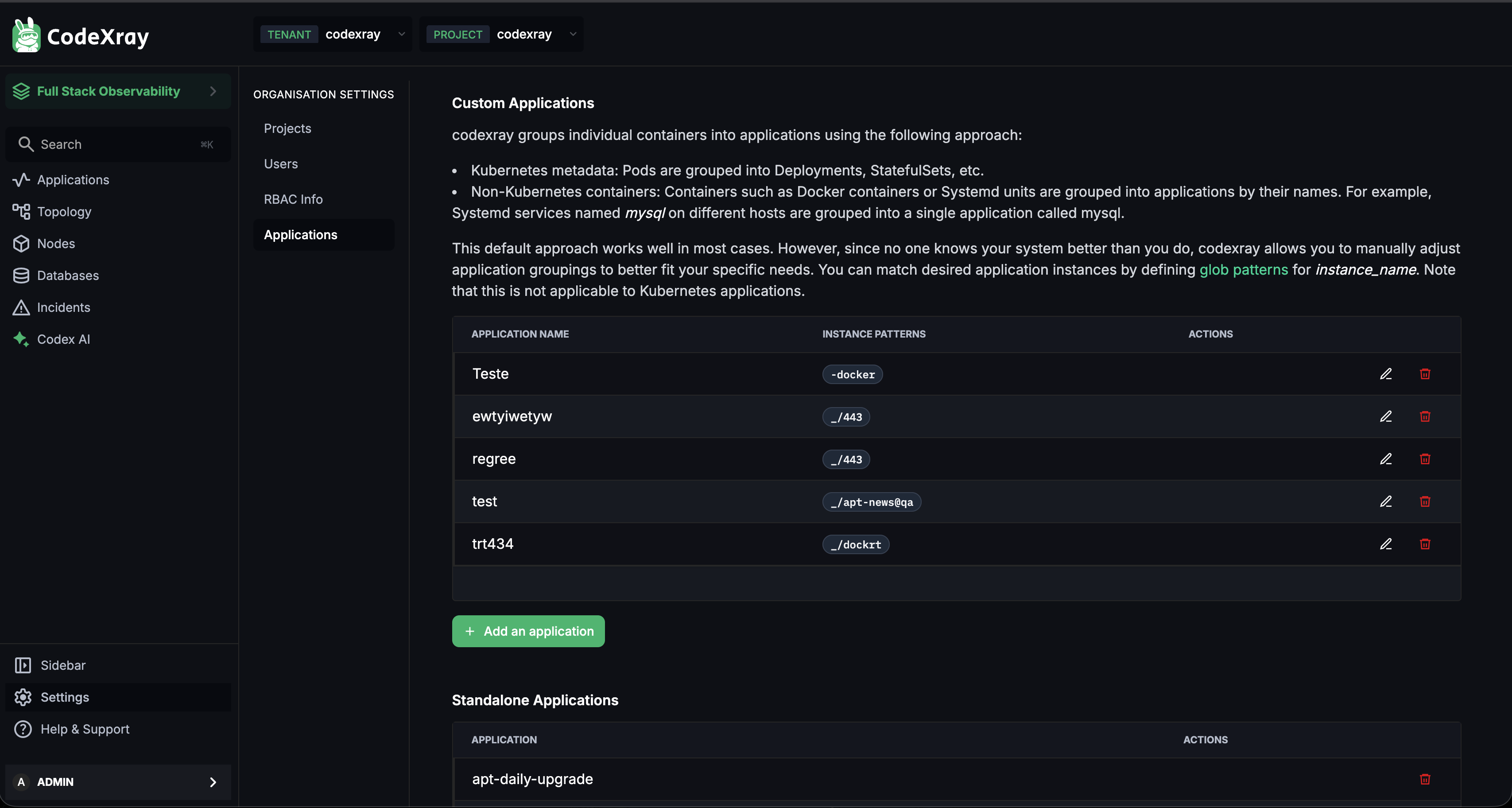
The screen is organised into two sections:
- Custom Applications — the group-by-pattern table (this is the main event)
- Standalone Applications — individual instances you've extracted out of the default auto-grouping
Custom Applications Table
Each row is a custom grouping rule made up of two things:
| Column | What it means |
|---|---|
| Application Name | The name CodeXray should use for this application everywhere in the UI (dashboards, alerts, traces, etc.) |
| Instance Patterns | One or more glob patterns matched against the instance's instance_name attribute. Any instance matching any pattern is grouped into this application. |
Hover a row and you'll see edit and delete actions.
Creating a Custom Application
- Click + Add an application.
- Give it a short, lowercase name — same slug conventions as most tools (
my-app,prod-api, no spaces). - Add one or more instance patterns. Patterns are space-separated. Any instance whose
instance_namematches any of the patterns becomes part of this application. - Save. The grouping applies within a minute or two, and the new application appears in the main Applications list.
Glob Pattern Examples
Patterns use standard glob syntax — * matches any sequence, ? matches a single character, [abc] matches a character class.
| Pattern | Matches |
|---|---|
api-* | api-users, api-orders, api-cart — any instance starting with api- |
*-prod | payments-prod, auth-prod — any production instance |
web-?? | web-01, web-02 — exactly two characters after web- |
api-* web-* | Either pattern matches — combine rules into one application |
[pqs]ayments-* | payments-*, qayments-*, sayments-* — character class |
Patterns are matched against instance_name — the container / unit / process name as reported by the agents. They do not match host names, labels, IPs, or other attributes.
Editing or Renaming
Editing a row lets you change either the name or the patterns (or both). If you rename a custom application, historical telemetry stays linked to the new name automatically — dashboards, alerts, and recorded incidents keep working.
Deleting
Removing the last pattern (or using the delete action) releases those instances back to default grouping. The instances themselves keep producing telemetry — they just rejoin whatever auto-group their name would put them in.
Standalone Applications
Sometimes the opposite problem bites you: default grouping merges instances that you'd rather keep separate. For example, two unrelated systemd services both happen to be called worker — but one runs your order pipeline and the other runs an unrelated data sync.
The Standalone Applications section at the bottom of the page lets you mark a single instance as its own, standalone application — breaking it out of the auto-group it would otherwise fall into.
Use it for:
- Extracting one critical instance from a generic pool so it gets its own dashboards, SLOs, and alerts
- Isolating a "canary" or "pilot" host for separate monitoring
- Splitting legacy workloads that happen to share a name with something else
Limitations
Custom Applications applies only to non-Kubernetes workloads (Docker, systemd, bare processes). For Kubernetes pods, grouping follows the cluster's own metadata (Deployments, StatefulSets, etc.). If you need different grouping for K8s workloads, the right answer is usually at the manifest level — or use Application Categories to organise them into functional buckets.
Other things worth knowing:
- Match order is first-match-wins. If an instance matches patterns in two Custom Applications, the first match (by creation order) takes it.
- Patterns run against live telemetry — there's no snapshot. Changing patterns re-groups instances from that point forward.
- You need Edit permission on the project's Custom Applications scope. See Role-Based Access Control for how to grant it.
A Worked Example
Imagine you're running 10 Apache HTTPD instances as systemd services on 10 hosts, all named httpd. By default, CodeXray groups them into one application called httpd — one row in the Applications list, aggregated metrics, one set of dashboards.
That's fine unless your 10 hosts do different things. Say half of them serve your marketing site (marketing-01 through marketing-05) and the other half run your internal admin panel (admin-01 through admin-05), and the processes happen to share the same binary name.
Create two Custom Applications:
| Application Name | Instance Patterns |
|---|---|
marketing-site | marketing-* |
admin-panel | admin-* |
Now you get two separate applications in the UI — each with its own RED metrics, alerts, and dashboards — even though both ran the same binary.
Next Steps
- CodeXray Node Agent — the next category: installing and configuring the agents that feed the views above
- Application Categories — group applications into higher-level buckets for navigation and access control
- Role-Based Access Control — who can edit Custom Applications in each project
- Architecture — how instances, applications, and telemetry fit together