Creating & Managing Jobs
A job is a saved recipe: a website, an interval, and a list of steps. This page covers the jobs list, how to create and edit a job, and how to run, pause, and delete one.
Creating, editing, running, pausing, and deleting jobs require edit rights. View-only users see the list and results but not the pause switch, action buttons, or Add job — see Access and plan.
The jobs list
Open Synthetic Monitoring in the left navigation. The list is the home base for everything.
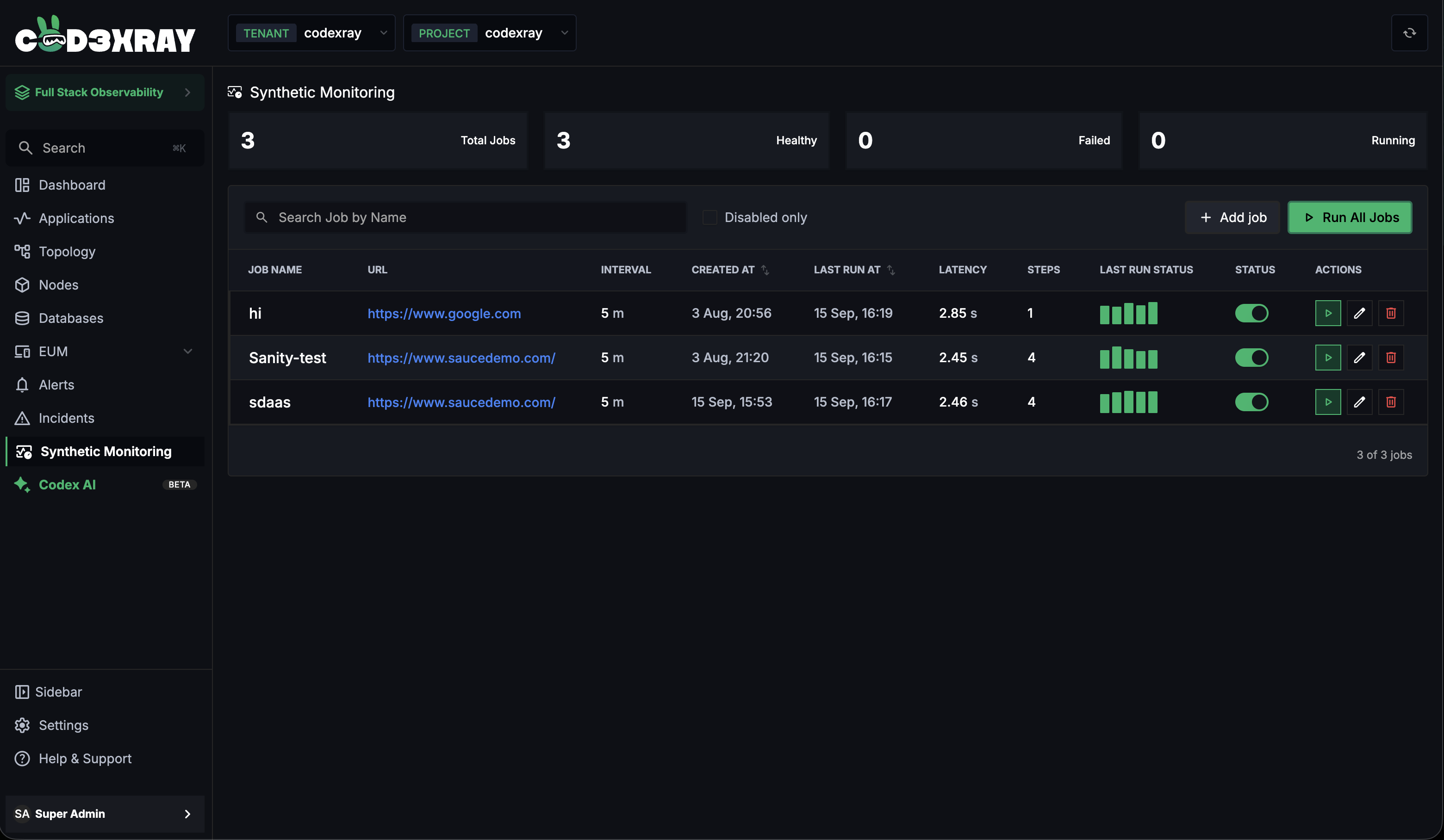
Count cards
Four cards summarise your jobs — Total Jobs, Healthy, Failed, and Running. Click a card to filter the table to that group; click the same card again to clear the filter.
A job that has never run counts only towards Total Jobs, because it has no result yet. So Healthy + Failed + Running can be less than Total.
The table
| Column | What it shows |
|---|---|
| Job Name | The job's name (searchable, sortable) |
| URL | The target website (opens in a new tab) |
| Interval | How often it runs, e.g. 5m |
| Created At | When the job was created |
| Last Run At | When it last ran — — if it never has |
| Latency | How long the last run took — — if it never ran |
| Steps | Number of steps in the job |
| Last Run Status | A mini bar of the last 5 runs — bar colour is the result, bar height is how slow that run was. Hover a bar to see PASS · 320 ms, or No data for an empty slot. |
| Status | A pause / resume switch (edit rights only) |
| Actions | Run, edit, and delete buttons (edit rights only) |
Toolbar:
- Search Job by Name — filters the list as you type.
- Disabled only — narrows the list to paused jobs; off by default (all jobs shown).
- Add job — opens the create dialog.
- Run All Jobs — runs every job in the project at once.
The list refreshes on its own while jobs run — use the refresh button in the top bar to force a refresh. Pagination shows 25 rows per page by default. Click any row to open that job's results page.
Creating a job
Click Add job to open the dialog.
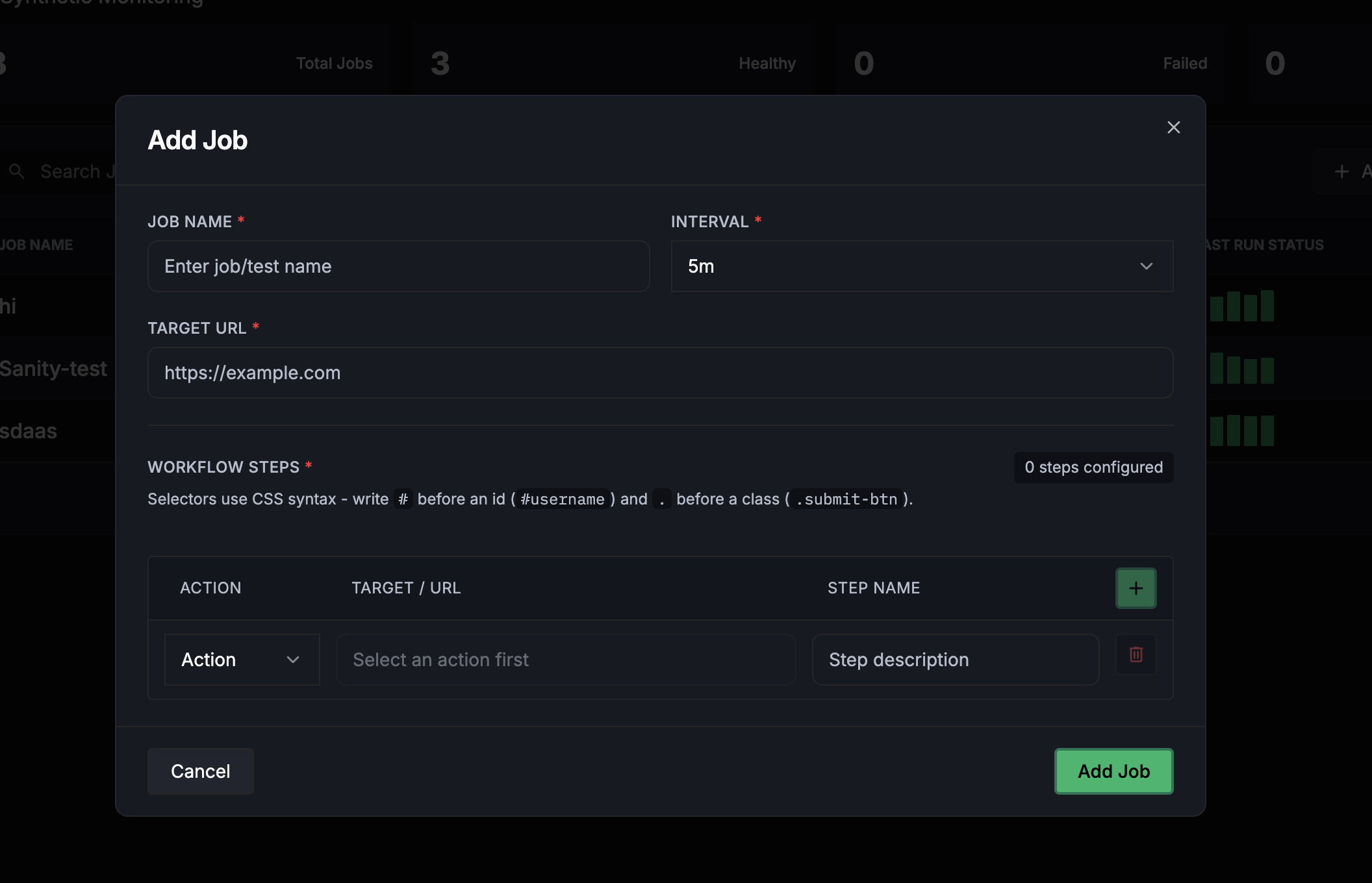
The basics
| Field | What to enter |
|---|---|
| Job Name | A unique name (e.g. checkout_flow). |
| Interval | How often it runs — pick from 5m, 10m, 15m, 1h, 3h, 12h, 1d. |
| Target URL | The website the journey runs against, e.g. https://example.com. |
Every job needs a name, an interval, a target URL, and at least one step.
Adding workflow steps
Each step is one action. Pick an Action, fill its Target / URL (where relevant), and give it a Step Name. The available actions:
| Action | What it does | Needs |
|---|---|---|
| goto | Opens a path on the target URL's host — leave it at / for the homepage. | A path |
| click | Clicks the element the selector matches. | A selector |
| type | Enters a value into the element the selector matches. | A selector and a value |
| upload | Attaches a file to the file input the selector matches. | A selector and a file |
| wait | Pauses the run for a set time before the next step. | A duration (100ms, 500ms, 1s, 1.5s, 2s) |
| measure | Records page timings at this point in the run. | Nothing — no target needed |
Write # before an id and . before a class: #username targets the element with id username; .submit-btn targets an element with class submit-btn. A hint above the step list reminds you which fields each action needs.
A few behaviours worth knowing:
gotosteps stay on your site. The host is fixed to your Target URL — only the path after it is editable. Change the Target URL and everygotostep's host updates with it.- One step at a time. The add-step button stays disabled until the current step is complete; hover it and it explains "Finish the current step before adding another."
- File uploads accept JSON, PDF, and TXT files up to 5 MB each. Anything else is rejected with "Only JSON, PDF, and TXT files are allowed" (or "File size must be less than 5MB").
Saving
Click Add Job. If something's missing, the dialog lists the problems in plain English and doesn't save — for example:
- Job Name is required
- Target URL is required · URL must start with http(s)://
- Interval must be a positive value (e.g. 5m, 1h, or 90)
- At least one workflow step with an action is required
- Step 1: Selector is required for a click action (per-step problems name the step number)
- Job name already exists. Choose a different name
On success a toast confirms Created your-job-name., the dialog closes, and the job appears in the list.
Editing a job
Click the edit (pencil) button on a row. The dialog opens with every field and step exactly as saved. Save stays disabled until you actually change something — hover it and it reads "No changes to save." Saving shows Saved your-job-name.
Running, pausing, and deleting
Run a job now
The run button on a row starts that job immediately and confirms with Started your-job-name. While it runs, the button shows a pause glyph and can't be pressed again — press it twice quickly and the second press is refused with Job is already running.
Run every job
Run All Jobs starts every job in the project at once (the button reads Running… while it works), and the Running count climbs as they start.
Pause a job
Flip the Status switch off to pause a job. Pausing:
- Stops the scheduler from running it,
- Keeps its setup and its run history,
- Greys out its run button with the tooltip "Job is paused."
Flip the switch back on to resume the schedule. Use Disabled only in the toolbar to see just your paused jobs.
Delete a job
The delete (trash) button asks for confirmation first — "Are you sure you want to delete the job … ? This action will permanently remove all associated run history and telemetry data. This cannot be undone." On confirm, the job and its history are removed and the Total Jobs count drops by one.
Next steps
- Reading Job Results — open a job and read its runs, honeycomb, SLA, and web-vitals
- Synthetic Monitoring Overview — concepts, statuses, and web-vitals grading